How to download all images from a website: one homepage gave us 63 files, mostly logos and icons
We downloaded every image from one homepage. Here are four ways to do it, what each one misses, and what it costs.
 Devansh TiwariAuthor
10 min read
For one page, a browser extension such as Download All Images saves everything into a ZIP. For many pages, a list of links or a weekly job, use wget or a hosted downloader that crawls. Whichever you pick, set a size filter. Our test run on apify.com's homepage downloaded 63 files, and only 14 of them were 400 pixels wide or more.
On this page
How do you download all images from a website?
For one page, use a browser extension that grabs every image on the open page and saves them as a ZIP. For a whole site, a long list of pages or a repeat job, use wget or a hosted downloader that crawls. Either way, filter by size. On the homepage we tested, most of the files were logos and icons.
There are four routes:
- A browser extension, such as Download All Images for Chrome. It works on the page you have open and can save a ZIP. You start every job by hand.
- Your browser's developer tools. Chrome's Network panel lists every image the page loaded and can copy all their links at once. It doesn't save the files.
- wget on the command line. It walks through a site and keeps only the file types you name. Its manual lists HTML, XHTML and CSS as the pages it reads links from, so don't count on it for images that a script adds.
- A hosted downloader, like the Bulk Image Downloader we built on Apify. You give it pages or image links, and it returns the files plus one spreadsheet row per image. You pay per image, and it doesn't run JavaScript either.
Disclosure: GetAScraper (that's us) built the Bulk Image Downloader we test below. A rival on the Apify Store charges less per image, and the price table says so.
What we got from one homepage
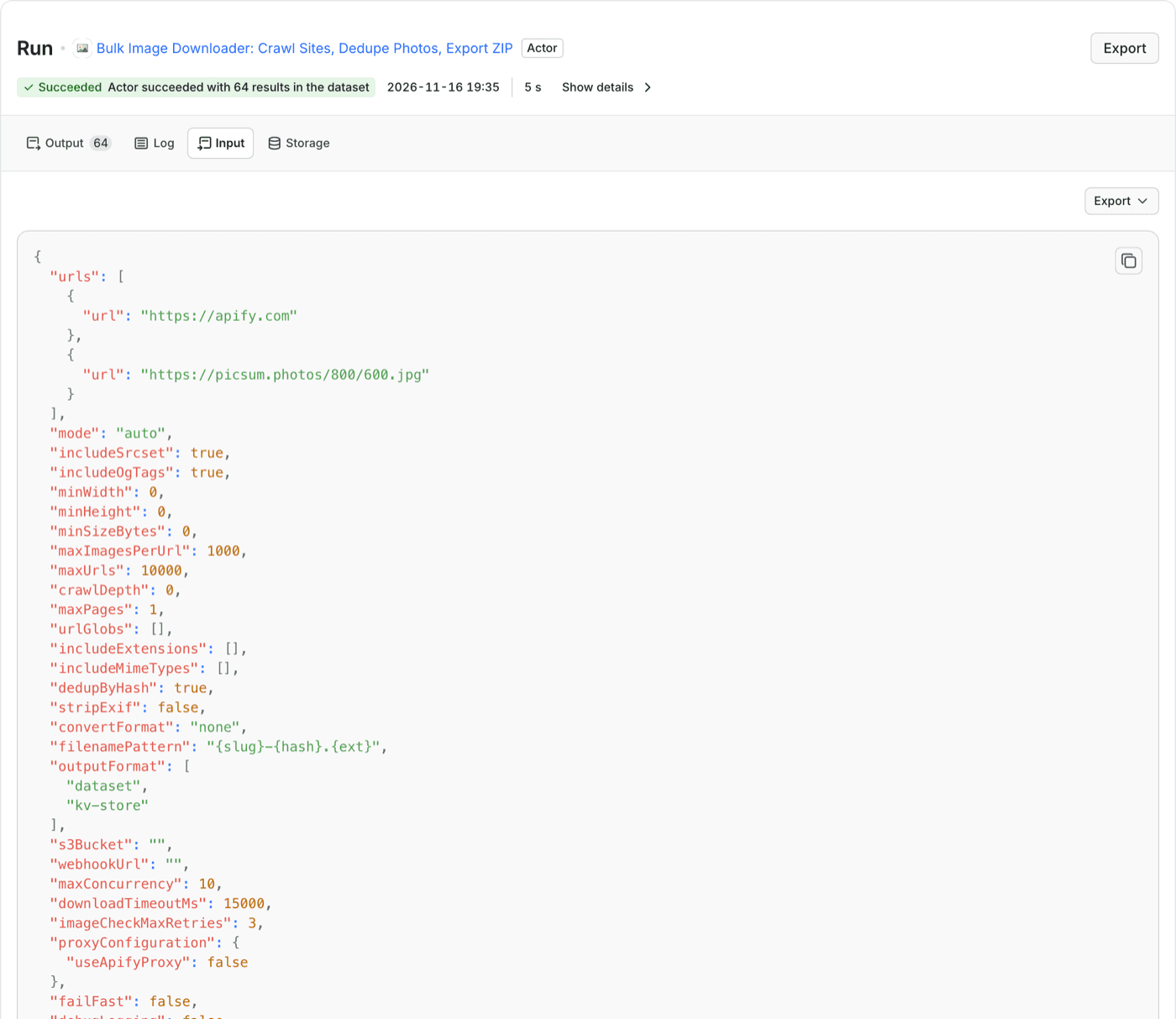
Our test run used the Actor's default input: apify.com's homepage plus one direct link to an 800 by 600 photo on picsum.photos. It finished in about 5 seconds with 64 images, 63 from the homepage and the one photo. Every download succeeded on the first try, and no file was a byte-for-byte copy of another.
This is one page on one site, built by a software company, so a shop or a news site will give a different mix.
I expected a homepage to be mostly pictures. It was mostly logos.
43 of the 63 files were logos and icons. That's 34 of the 40 SVG files plus the 9 small avatars and icons. If you came for the pictures, you'd delete about two thirds of the folder.
Only 14 files were 400 pixels wide or more. Seven were SVG illustrations and logos, and an SVG can be drawn at any size, so its width is only a hint. The other seven were four promotion graphics, the share image and two review-site badges. The Actor's README suggests a 400-pixel minimum width to skip thumbnails and avatars, and every avatar in this run was under 100 pixels wide.
You get the size the page asks for. The 9 avatars came down at 36 or 76 pixels because the page requests that size from its image server, and the size is written into each image's address. A downloader saves the file the page links to. It can't find a larger original that the page never mentions. Our Actor takes the largest version when a page offers several in a srcset list, but none of these 63 came from one.
Six PNG files arrived as WebP. The six review-site badges are PNG files on Apify's content server. The homepage serves them through its Next.js image route, and that route sent WebP. If your tools need PNG, the Actor can convert WebP to PNG as it saves.
One image isn't on the page at all. The 1,200 by 630 PNG came from the page's og:image tag, which holds the picture social networks show when someone shares the link. A tool that only collects the images drawn on the page won't see it.
Step by step: download every image from a list of pages
You need a free Apify account. Apify's Free plan costs $0 a month, includes $5 of usage a month and needs no credit card. Steps 1 to 3 need no code.
Step 1: add your pages or image links
Open the Bulk Image Downloader and paste URLs, one per line. Each one can be a web page, which the Actor reads for images, or a direct link to an image file, and you can mix the two. It also takes a public CSV or text file of links, a Google Sheet shared by link, or another Apify dataset.
Step 2: choose how far to go and what to keep
These are the settings worth a look:
- Crawl depth and pages per input follow links from your start page, up to 3 links deep and 100 pages per input. Add URL patterns such as
https://example.com/products/*to stay inside one section. - Minimum width, height and file size drop avatars, icons and tracking pixels. After the run above, I'd start at a 400-pixel minimum width.
- Image extensions keep only the types you list, such as jpg, png and webp, which leaves the SVG logos out.
- Deduplicate by content hash is on by default, so the same picture under two addresses is saved once.
- Format conversion turns WebP into PNG, or PNG into JPG.
Three presets, Quick ZIP, Website inventory and ML dataset, fill in starting values. Anything you set yourself overrides them.
Step 3: run it and collect the files
Click Save & Start. Each image comes back as one row with the page it came from, its link, format, width, height, size, how it was found and whether it downloaded. Export the rows as CSV, Excel or JSON.
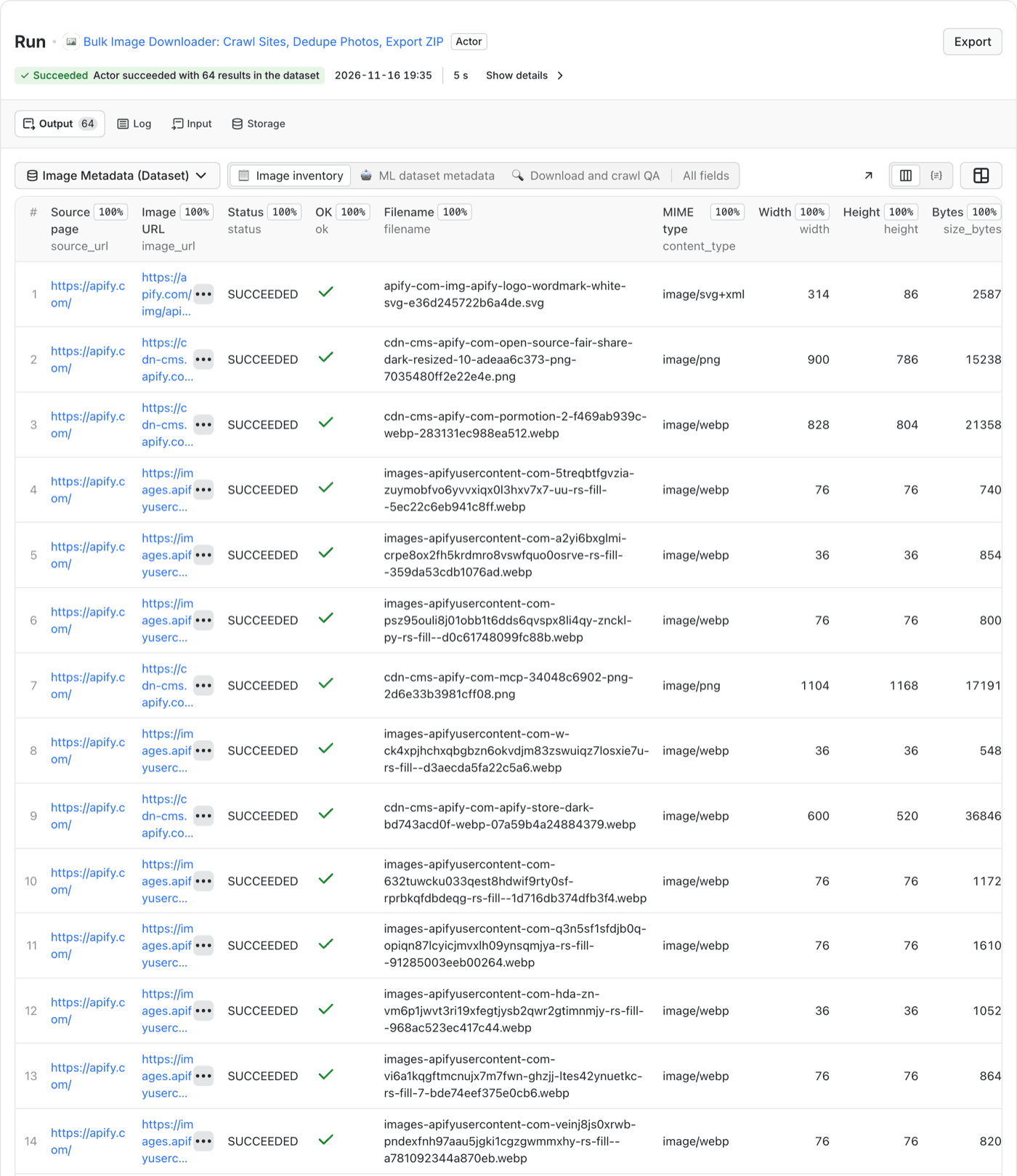
The files sit in the run's storage, and each row links to its file. Those links are signed and expire after 24 hours by default, so collect the files soon after the run. For one archive, add zip to the output formats and the Actor writes OUT-images.zip. zipPerUrl makes one ZIP per page instead. You pay only for images the Actor downloaded and stored, so failed and skipped images cost nothing.
Once the files are saved, you can run them through an OCR API to read the text inside them, or find where each image appears online.
From Python
The same job, called with the Apify Python client:
from apify_client import ApifyClient

client = ApifyClient("YOUR_APIFY_TOKEN")
run = client.actor("getascraper/bulk-image-downloader").call(
    run_input={
        "urls": [{"url": "https://example.com/gallery"}],
        "minWidth": 400,
        "outputFormat": ["dataset", "kv-store", "zip"],
    }
)
for row in client.dataset(run["defaultDatasetId"]).iterate_items():
    print(row["status"], row.get("format"), row.get("width"), row.get("height"), row["image_url"])
The other routes, and what each one misses
A browser extension
Download All Images for Chrome lists 200,000 users and a 4.0 rating from 290 ratings on the Chrome Web Store. Its listing says it filters by file size, dimensions, type and URL, removes identical images, finds images in CSS files and saves ZIPs. A "deep image search" also takes images from the pages after the current one.
It reads the page your browser has already loaded, so it can catch images that a script added. A tool that reads only the raw HTML can't. The catch is that you start every job by hand in your own browser. That suits one gallery page. It doesn't suit 500 product pages or a weekly refresh.
Your browser's developer tools
In Chrome, open DevTools, go to the Network panel, reload the page and click the Img filter. DevTools now lists every image the page loaded. Right-click any row and choose Copy, then Copy all listed URLs, to get every link at once.
This copies links, not files. Paste the list into a downloader that takes direct image links, such as our Actor with its mode set to direct. That's also the fix for pages that build their images with JavaScript, since DevTools lists what the browser actually loaded.
wget on the command line
wget is a command-line downloader. This command saves the images a page links to, one link deep:
wget -r -l 1 -nd -H -D example.com,examplecdn.com -A jpg,jpeg,png,gif,webp,svg -w 1 https://example.com/-rturns on recursive retrieval, and-l 1limits it to one link deep. Raise-lto go further into the site. Without-l, the manual says the default depth is 5.-Akeeps only the file endings you list.-ndsaves every file into the current folder instead of rebuilding the site's folders.-Hlets wget follow links to other hosts, and-Dlimits them to the domains you list. You need both when a site keeps its images on a separate CDN.-w 1waits a second between requests. The manual recommends waiting because it lightens the load on the server.
wget respects the site's robots.txt. Its manual says it follows links in HTML, XHTML and CSS pages and never mentions JavaScript or srcset, so don't expect images that a script adds. You also write and tune the command yourself, and you get a folder of files with no spreadsheet of where each one came from.
What it costs
Our test run's 64 images would cost about 6 cents at our Free plan price. Apify's $5 of monthly usage covers about 5,600 images at that price. When the $5 runs out, Apify blocks Free plan runs until the next billing cycle, and unused credit doesn't carry over.
The sste Website Image Downloader costs less than a quarter of our Free plan price per image. Its listing says it also reads inline CSS backgrounds and noscript fallbacks, which ours doesn't list, and it has a mode that returns only the image links at $0.00005 each. In the last 30 days it had 7 users and 54 runs, 3 of which failed. Ours had 35 users and 244 runs, with 1 failed and 1 aborted. We haven't run sste's Actor, so we can't compare what the two return on the same page. Prices change, so check each Store page before you budget.
What can go wrong
- Pages that build their images with JavaScript. Our Actor reads each page as the server first sends it and doesn't run JavaScript, and wget's manual never mentions it. Copy the links from DevTools and paste them in direct mode instead.
- Hotlink protection. Some image hosts refuse requests that don't come from their own pages. The Actor has an optional residential proxy for those sites.
- Small files stay small. A downloader saves the size the page links to, as the 36-pixel avatars in our run show.
- Expiring links. The file links in the Actor's rows expire after 24 hours by default.
- Rights. Saving an image doesn't give you the right to reuse it.
Sample data
10 of the 64 images from our test run, with the page each came from, its format, width and height in pixels, file size, how it was found and whether it was a duplicate.
Images found on apify.com's homepage
10 rows8 columns624 bytes
Showing 5 of 10 rows. The rest are in the CSV.
Questions people ask
Can I download all images from a website for free?
Yes. wget and Chrome's DevTools cost nothing, and Download All Images shows no price on its Chrome Web Store page. On Apify's Free plan, the $5 of monthly usage covers about 5,600 images with our Actor, and our 64-image test run would cost about 6 cents.
How do I download all images from a website as a ZIP?
Download All Images says on its listing that it can save a ZIP. With our Actor, add zip to the output formats and the run saves every file in one archive named OUT-images.zip. Use zipPerUrl to get one ZIP per page.
Why are my downloaded images tiny, or in WebP format?
Because the page served them that way. In our test run, 9 avatars arrived at 36 or 76 pixels because the page asks for that size, and 6 PNG badges arrived as WebP because the site sends them through its image resizer. Set a minimum width to skip the small ones, and convert WebP to PNG if your tools need it.
Is it legal to download all the images from a website?
It depends on what you do with them. Saving an image doesn't give you the right to reuse it, since images are usually under copyright, and a site's terms may forbid automated downloading. Read the terms, keep the source page of every file (our Actor records it in each row), and get permission before you publish or reuse an image. This isn't legal advice.
Want every image from a list of pages, plus a spreadsheet of what was saved?
Open the Bulk Image Downloader